Banner

Saturday, January 26, 2008

[HOW TO] - Jailbreak 1.1.3 Firmware without a Computer

Today, H3X announced that he can jailbreak 1.1.3 without a computer in the iPodTouchFans Forum. It created such a long thread. Finally, today he released the instruction. See below:-

Instructions for installing 1.1.3 jailbreak/firmware without a computer

Requires Jailbroken 1.1.1 or 1.1.2 iPod Touch or iPhone, with installer installed
Make sure you set Auto-Lock in settings to “Never” before you begin!

  1. Add the source “http://ipodhacking.com/repo.xml” (without the quotes) to your installer application if you have not already.
  2. Scroll down to the “Jailbreak” folder, and install “Jailbroken 1.1.3 image”, or another image. This will take a while to download and install.
  3. When it is done, scroll down to “System”, then install 1.1.3 soft upgrade this should take 5-10 minutes to complete.
  4. Now, your iPod/iPhone should restart. When it boots up, it should be in firmware 1.1.3.
  5. Go into installer and it might ask for an upgrade. Hit “OK”.
  6. Unlock your iPod/iPhone, and go back into installer. Uninstall everything except “Installer” and “OpenSSH”.
  7. Click “Update” at the bottom, the “Update all” in the top right.
  8. Now your sources should refresh. Go into “System” and install “1.1.3 soft upgrade cleaner”.
  9. If you can find it, install “1.1.3 OpenSSH fix”. If you can not find it, don’t worry
Congratulations, you now have a fully jail broken iPod Touch/iPhone running the 1.1.3 firmware!(Or another one)

Credits to the iPhone/iPod Touch dev team, Ste, xxDriveNxx, and H3X.

Make sure to check out ipodhacking.com and ipodtouchfans.com.
--------------------------
EDIT: Update News - The above method is still UNDER PROGRESS by H3X and still not working.

Another group is working on this. Please see this discussion ---> HERE

Saturday, January 19, 2008

[HOW-TO] - Downgrade Firmware 1.1.3 to 1.1.1


The day when iTunes prompt me to upgrade to 1.1.3, I hesitated coz I don't want to brick my Jailbroken iPod Touch 1.1.2. I quickly read through the iPod Touch Fans Forum and true enough it will brick the Jailbroke iPod Touch and iPhone. In order to Jailbreak it again, the owner needs to go back to the original Firmware 1.1.1 which at first found to be very difficult.

Here's some of the resources which I found that will help to downgrade to 1.1.1:-

1 - iPodTouchMaster Website
2 - World’s Easiest Method to Downgrade the iPod touch from 1.1.3 to 1.1.1!

Thanks to the original sources above... Let me copy the contents from the Source (2) for ease of reading.

Here’s the world’s easiest method to downgrade your iPod touch from 1.1.3 back to 1.1.1, as first reported by our blog reader, James.

Here’s the world’s easiest method to downgrade your iPod touch from 1.1.3 back to 1.1.1, as first reported by our blog reader, James.

  • Connect your iPod touch to your running iTunes (version 7.5 is preferred). Make sure it shows up in iTunes.
  • Make sure your iPod is showing its 1.1.3 home screen (it’s not in Recovery Mode.)
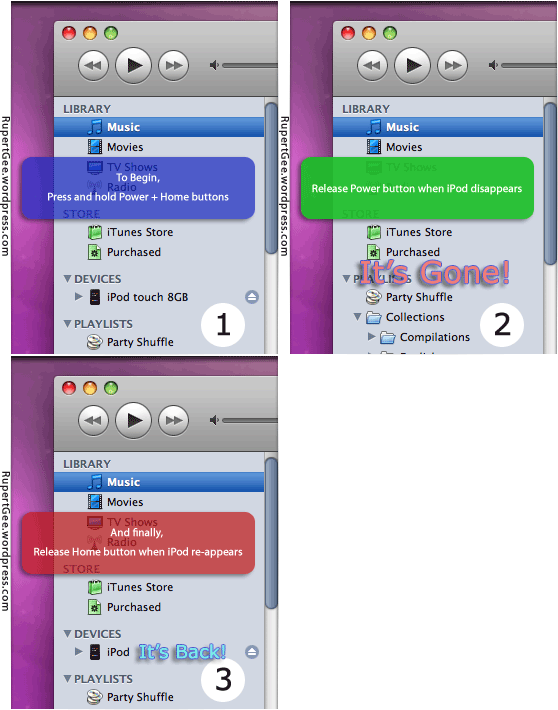
  • Put the iPod touch in DFU (Device Firmware Upgrade) Mode as follows:
  • Press and hold-down both the Power and Home buttons.
  • Release the Power button when you see the iPod disconnects and disappears from iTunes. This takes place in about 10 seconds. The iPod’s screen is blank.
  • Release the Home button when you see the iPod re-connects and re-appears in iTunes. Again this happens in about 10 seconds. The screen is still blank until the iPod reconnects.
  • It’s good to go!
  • Now you can do the usual restore firmware procedure with Option+Restore (Shift+Restore in PC), and subsequently jailbreak your iPod touch once again.


To use iTunes 7.5 or 7.6? Both versions will get your iPod touch downgraded to firmware 1.1.1. However, version 7.6 breaks the “OktoPrep” hack. That means your iPod touch can only be jailbroken to version 1.1.1 after you installed AppSnap. iTunes version 7.5 is therefore preferred as it does not interfere with “OktoPrep” and you will be able to upgrade to version 1.1.2 firmware. Thanks to Berzerker for this tip!

Sunday, January 6, 2008

[HOW TO] - Customize your iPod Touch Dock

We can change the way our default iPod Touch Icons order just like the one shown below.
(1) Download "Customize" from the Installer "Utility"
(2) Select "Icon Display Order" to change the number of icons and select the order of icons.


Saturday, January 5, 2008

[HOW TO] - Karaoke with your IPod Touch


I found an excellent iPod application from one of the Installers called TuneWiki.
It can play the song in your iTunes together with the lyrics.
It depends on the TuneWiki community to provide lyrics which sync with the song.

Wednesday, January 2, 2008

[HOW-TO] - Use iPod Touch Shortcuts

1 - Double Tap browser to expand and minimize the display
2 - Double press the "Home" to display "Play" Music Menu

[Below TIPs are taken from HERE]

1. If you're scrolling through a long document/page in Safari - if you tap the bar at the top of your screen containing the time and battery, Safari will automatically scroll up to the top of the document/page and the show address bar.

2. Turn off WiFi and SSH (using Services from Installer) to save battery power when not in use.

3. Double clicking the home button in any application, or with the screen off will bring up the music controls.

4. Make sure to completely close apps when you are done with them to save battery power. This is accomplished by pressing and holding the home button for approximately five seconds. This boosts battery life big time if you run lots of different apps all the time.

5. Holding down letters on the keyboard will pop up the accents/symbols associated with those letters. Once it pops up, slide your finger over to the accent/symbol you like.

6. Whilst in Mail's inbox view, sliding your finger from left to right on a message the 'delete' button will appear. This also applies in the list view of the Videos application.

7. In Safari double tap to zoom in. You can also "pinch" (putting your thumb and index finger on the screen and pinching in and out) to zoom in Safari and in Pictures.

8. You can charge your iPod Touch from any powered USB port. Such as a computer, printer, media centre. The device does not have to have iTunes installed to provide power to your iPod Touch.

9. Need a spare cleaning cloth for your touch, or an extra cloth to rest your iPod touch on while at work or school? Just go to your local vision care store (or pharmacy) and get an eyeglass/sunglass "cleaning cloth". Cheap and works great!

10. When watching a video, tap to bring up the onscreen controls. When you are done watching a video make sure you press done so your progress will be saved.

11. If you want to set a picture as a permanent background (and not only in the "wake" screen) Set the picture as a background in settings or directly from the picture gallery then off the theme wallpaper in the SummerBoard settings.

12. When typing a lot of text in Safari turn it to horizontal view. The keyboard will be bigger and you can get a better grip of the Touch while typing with two thumbs.

13. When typing if you want to add something from the numbers keyboard just hold down the numbers and slide your finger to the number or symbol you want, and release. It will take you back to your letters keyboard. This way you dont have to tap numbers, tap your number, then tap numbers again to go back. This also applies for using the 'shift' key to apply capital letters.

14. When in Safari, if you are presented with a link, hold your finger over the link, and a bubble will appear showing the URL that the link is tied to.

15. In Safari since you can't open links in a new windows, you can open a new page, tap the bookmarks icon, tap the history folder and direct yourself to the last page you were just on and tap the link from there.

16. When listening to an audiobook, iTunes and your iPod create a new chapter list unrelated to the subject of the book. It's accessible using the same control used for viewing audio tracks (upper right of screen).

17. Make a spelling mistake? Press and hold the word you spelt wrong and a magnifying glass will appear. Slide your finger back and forwth to move the cursor.

18. When you're on a website that has a frame or an iframe with scrollbars in it, use two fingers on that frame to scroll that window and back to a single finger to scroll the whole page.

19. When typing, if you press the space bar twice after a word it will insert a period and another space.

20. If you wish to use the horizontal keyboard to chat on AIM, MSN, Yahoo, GTalk, ICQ, etc. Using Safari go to the site www.meebo.com and use it there.

21. Press the home and sleep buttons togeather to take a screen shot.

22. Spell a word wrong? Press spacebar once to let predictive text replace word.


Tuesday, January 1, 2008

[HOW-TO] - Add more iPod Touch Installer Applications

[Source --> HERE]
With the Installer application installed on your iPod Touch, you can add sources on your iPod Touch. Sources have many applications that you can install on your iPod Touch. Below is a list of a lot of sources that allow you to add many applications to the iPod Touch.


iPodTouchFans Sources:

Source:
touchrepo.com/repo.xml


Other Sources:

AlohaSoft 1.0.2: homepage.mac.com/reinholdpenner/102.xml
AlohaSoft 1.1.1: homepage.mac.com/reinholdpenner/111.xml
AlohaSoft 1.1.2: homepage.mac.com/reinholdpenner/112.xml
aXP: lostsoul.aeroxp.org/iphone/index.xml
BigBoss: markmon.mine.nu:90/iphone/repo/repo.plist
Blaze Ultimate: blazecompany.googlepages.com/blaze.xml (1,000+ Applications)
CedSoft: prog.cedsoft.free.fr (iSnake)
CopyCoders: homepage.mac.com/hartsteins/copycoders/copycoders.xml (Network Apps) NEW
Death to Design: iphone.deathtodesign.com
Demosthenes705's eBooks: brandonsgames.com/chriss/index.xml
iApp-a-Day: iappaday.com/install
iBlackjack: iphonefanclub.com/native
Imagine09: home.twcny.rr.com/imagine09/Imagine09.xml
iPhone Apps: repo.us.to
iUnlock: i.unlock.no
Limited Edition iPhone: limitededitioniphone.com/lei.xml
Mateo: bblk.net/iphone
ModMyiFone: modmyifone.com/installer.xml
MobileStacks: mobilestack.googlecode.com/svn/repository/internal.plist
MTL Repository: home.mike.tl/iphone
PXL Repository: pxl.freemyiphone.com
R4m0n Repository: iphone.r4m0n.net/repos
Robota International: iphone.robota.nl
Scientific Calcs: tinyurl.com/2b32sn
Shai's Apps: ride4.org/shai.xml (Addons for Customize)
Studded: studded.net/installer/index.xml
Surge: iphonesurge.com/iphonesurge.xml
Swell: lyndellwiggins.com/Swell.xml
weTools: app.weiphone.com/installer


Languages

Simplified Chinese: iphone.org.hk/repository.plist
Danish: iphone.vildmedmac.dk/install
FrenchIphone: rep.frenchiphone.com
Greek: greek-iphone.com/grloc
Hebrew עברית: ihebrew.net
iPhone FOR Taiwan: iphone4.tw/unlock/
Norwegian - iFon: Original Secure

Another Source ---> ULTIMATE LIST OF SOURCES


[HOW TO] - Turn your iPod Touch into a 3G iPhone...!

I read a tip by someone who can connect the iPod Touch to a 3G Phone and access the internet.
I have not tried this because I thought "What the heck people who have a 3G phone BUT still want his iPod Touch to access the Internet? They just should use the 3G phone itself to access the Internet!"

Also, by connecting the iPod Touch to a 3G phone doesn't make the iPod Touch a 3G-capabled because it still can't make a simple voice call or 3G video call or even SMS and MMS.... Arrghhh!!

Anyway ... for those who are interested can find the tip, click ---> HERE.

ShareThis

Related Posts Plugin for WordPress, Blogger...